Why is my PDF so big?
A page of ordinary text takes very little space in a PDF, often just a few kilobytes, because the text is stored as characters and fonts, not as a picture. What makes a PDF big is almost always images:
- Phone photos pasted into a report. A single 12-megapixel photo can add several megabytes.
- Scanned pages such as signed letters, certificates and ID cards, often scanned at 300 dpi or more in full colour.
- Heavy drawings and charts exported at a high resolution.
So in a 10-page document, two or three pages usually account for nearly all of the file size. The rest are tiny.
Why "compress PDF" tools blur everything
A typical PDF compressor applies one quality setting to the whole file. To get the photos small enough, it lowers the quality of every page, and many tools turn each page, text included, into a picture. That causes three problems:
- The text blurs. Sharp letters become a low-resolution image of letters.
- You can no longer search or copy the text, because a picture of a page has no characters in it.
- Text pages can even get bigger. A picture of a page of text is usually larger than the text itself.
If you're submitting an application, a report or exam paperwork, blurry text is exactly what you don't want.
The better way: shrink only the heavy pages
The fix is to lower the resolution of only the pages with photos or scans, and leave the text pages alone. Here's how.
1. Find out which pages make the file big
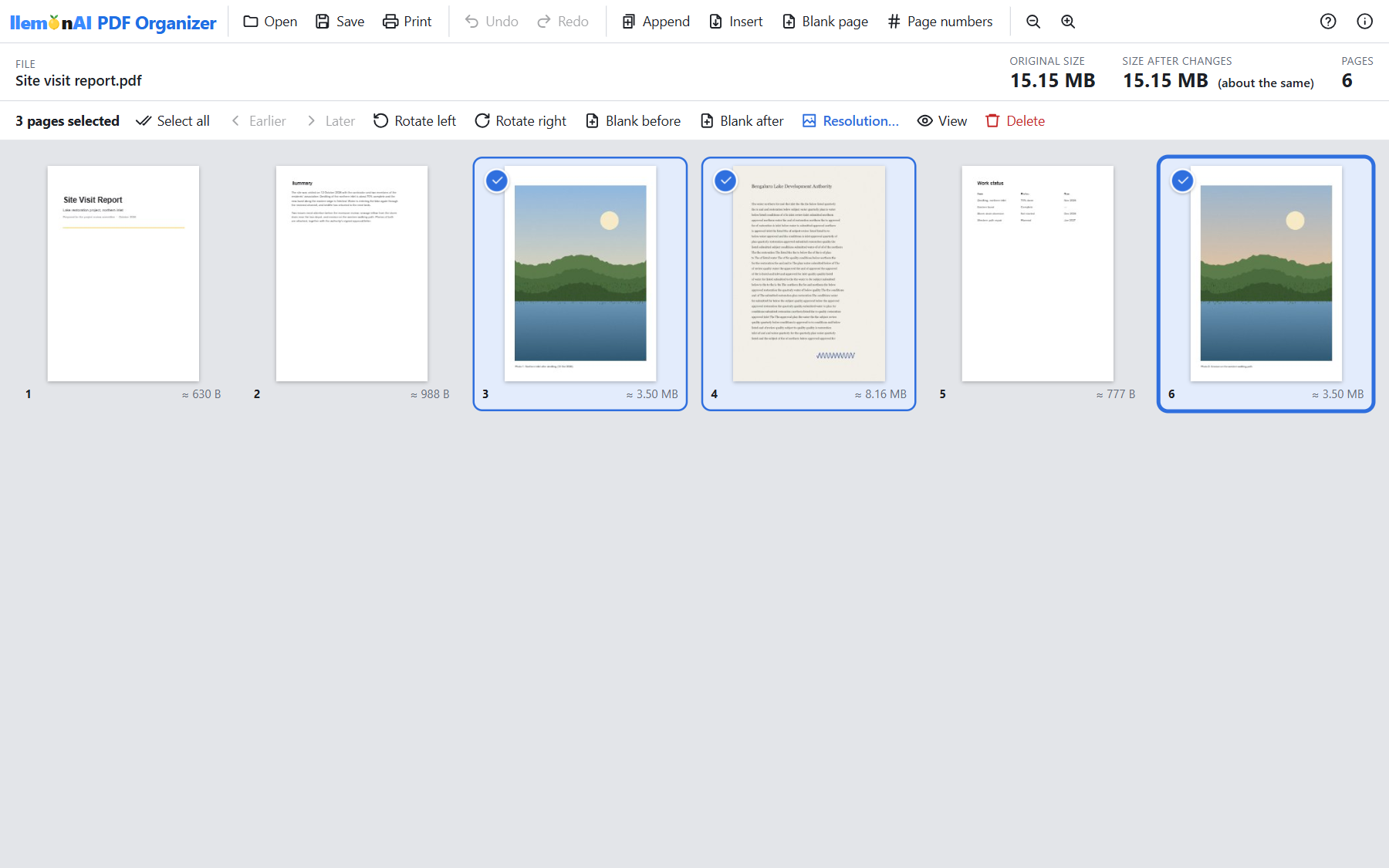
Open the PDF in a tool that shows the size of each page. In llemonAI PDF Organizer, every page thumbnail shows its share of the file size, so the heavy pages stand out right away.
2. Select just those pages
On Windows, Ctrl+click each heavy page. On Android, tap the ✓ on each page.
3. Choose a lower resolution
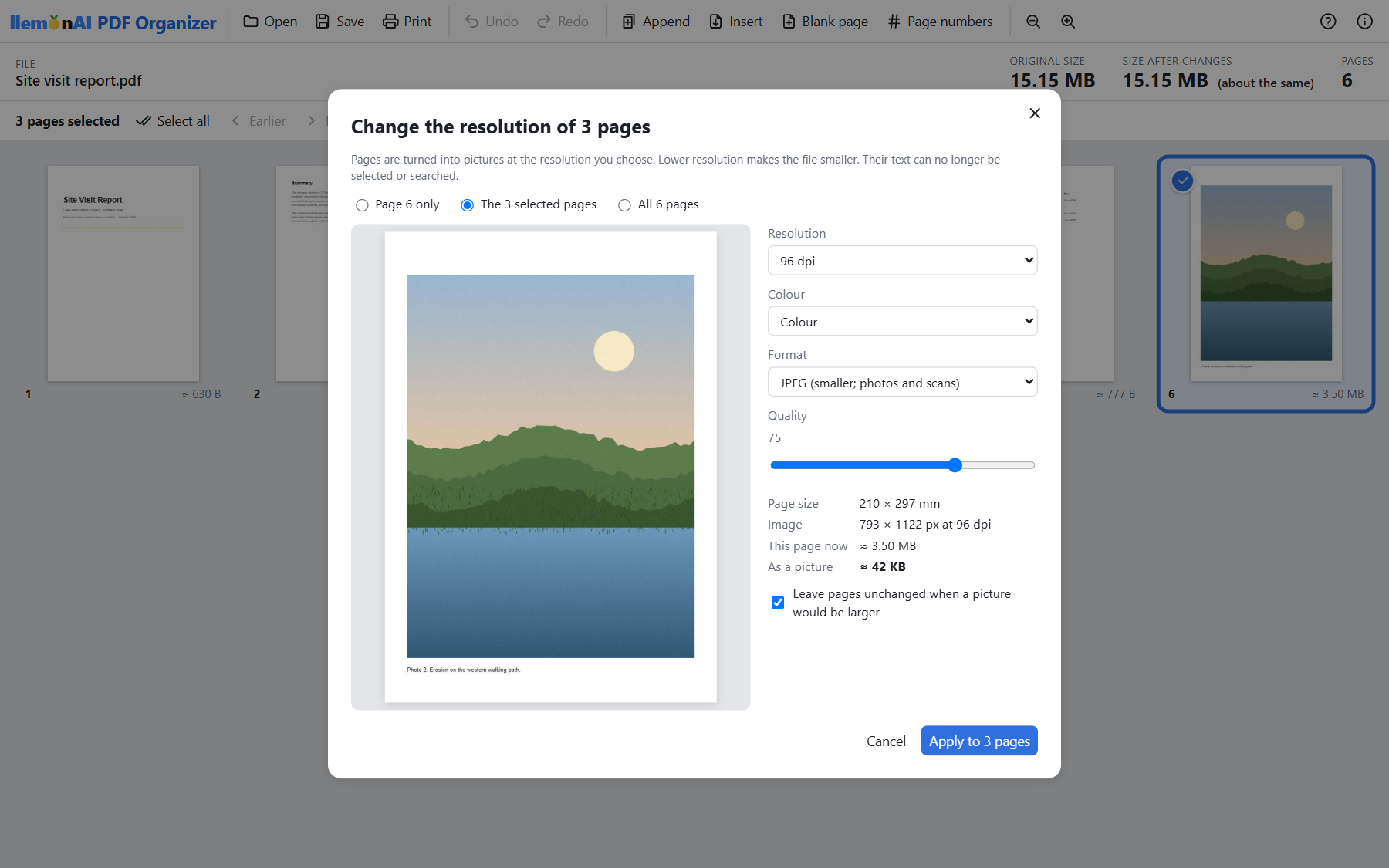
Pick a resolution (dpi), colour or grayscale, and JPEG or PNG. The right choice depends on what the page is for:
| Page is for | Resolution | Format |
|---|---|---|
| Reading on screen, email, web upload | 96–150 dpi | JPEG |
| Printing photos at normal quality | 150–200 dpi | JPEG |
| Scanned black-and-white letters, forms, signatures | 150 dpi, grayscale | JPEG, or PNG if lines must stay crisp |
| Diagrams with flat colours and thin lines | 150–200 dpi | PNG |
Switching a scanned document from colour to grayscale is often the single biggest saving, because most scans of paper don't need colour at all.
4. Apply and check the result
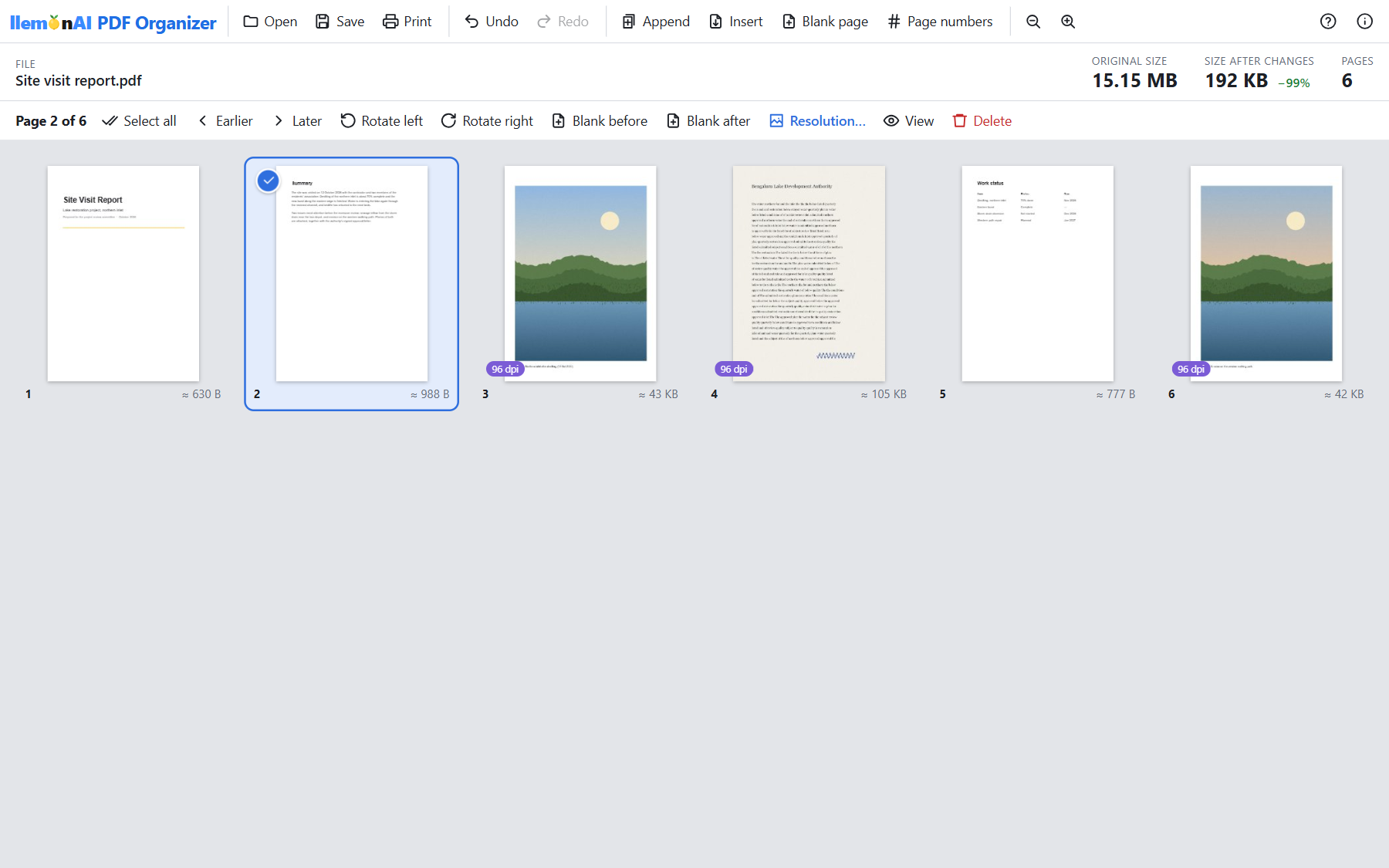
Apply the change and look at the new total size. In our demo report, two photos and a scanned letter at 96 dpi took the file from 15.15 MB to 192 KB, which is 99% smaller. All four text pages stayed exactly as they were: sharp, searchable and still tiny.
Good to know: a page whose resolution you change becomes a picture, so its text can no longer be selected or searched. That's fine for photos and scans, which were pictures anyway. It's also why you should leave ordinary text pages alone.
Common size limits
Many email services cap attachments at around 20–25 MB, and many online application forms and government portals accept far less, sometimes only 1 or 2 MB per file. If a portal rejects your PDF, check its stated limit and aim comfortably below it.
Quick checklist
- Find the 2–3 pages that hold most of the file size.
- Lower only those pages to 96–150 dpi.
- Use grayscale for scanned paper documents.
- Leave text pages untouched so they stay sharp and searchable.
- Check the new size against the limit you're aiming for.
Try it free: llemonAI PDF Organizer
Free for Windows 10/11 and Android. A portable app with no installer, no account and no upload: your files stay on your device and it works offline.
Download PDF Organizer