Download
Windows or Android — pick the build that matches your device. Not sure which Windows build? Almost every PC made since 2010 is 64-bit — use the 64-bit build unless you know otherwise.
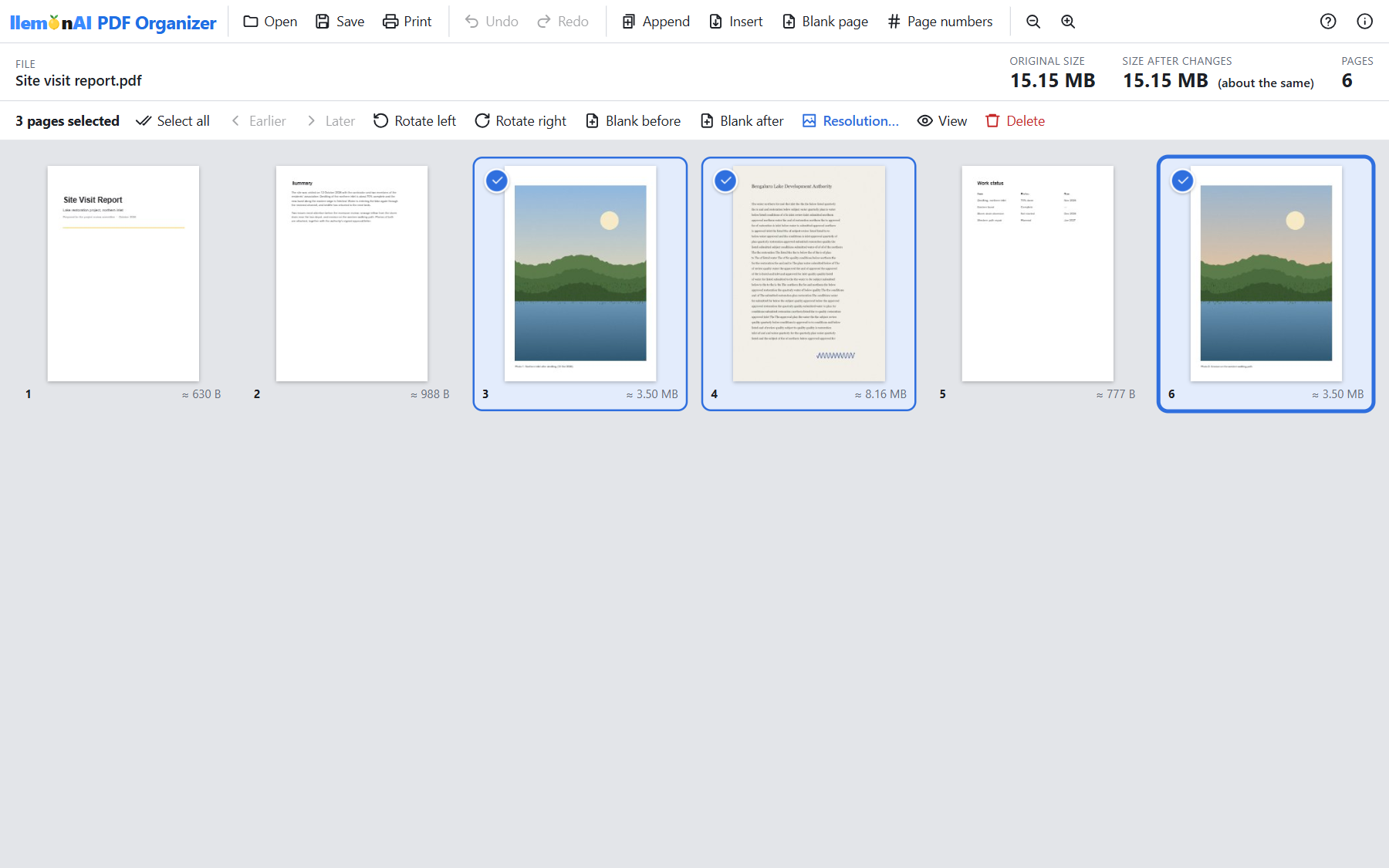
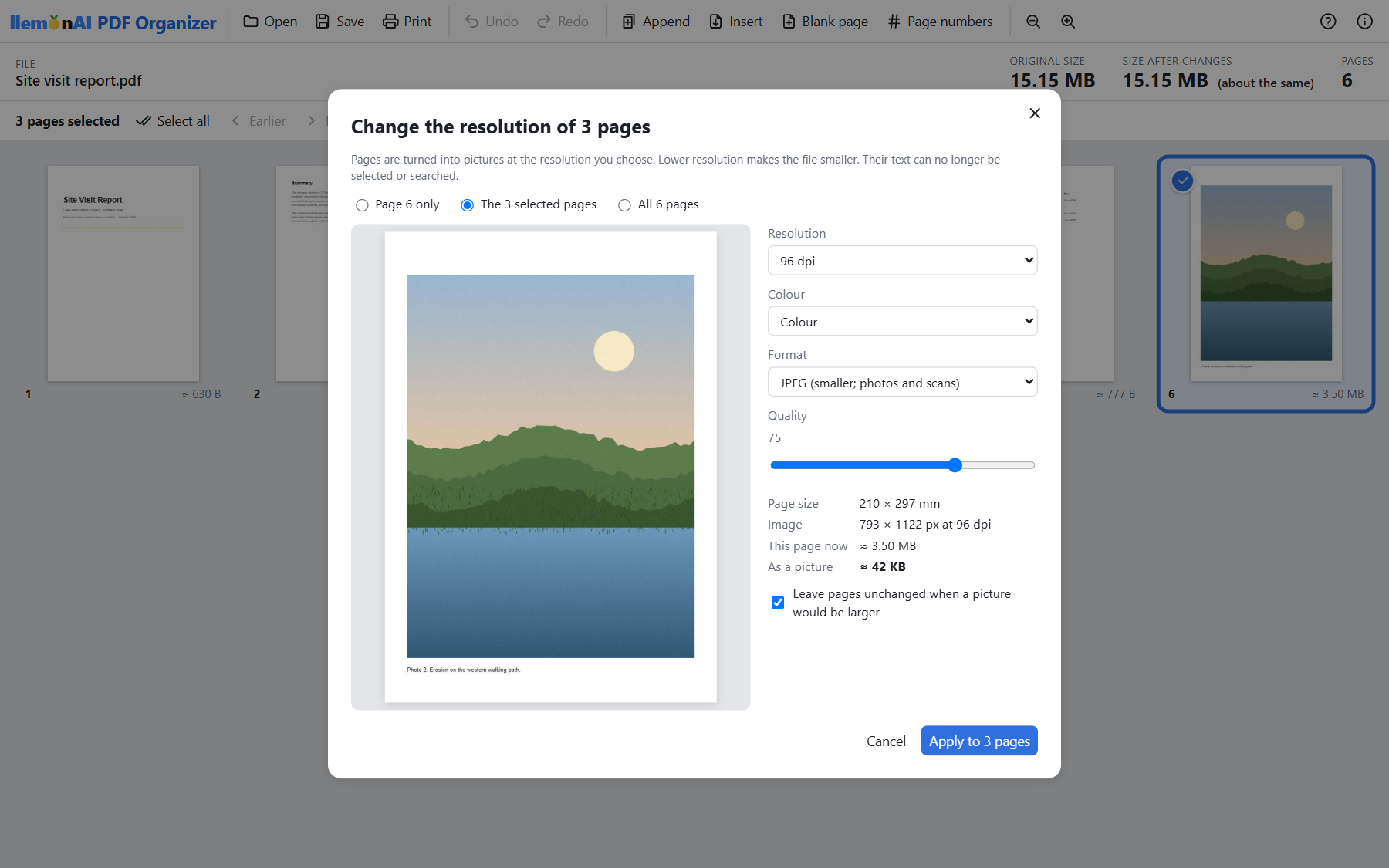
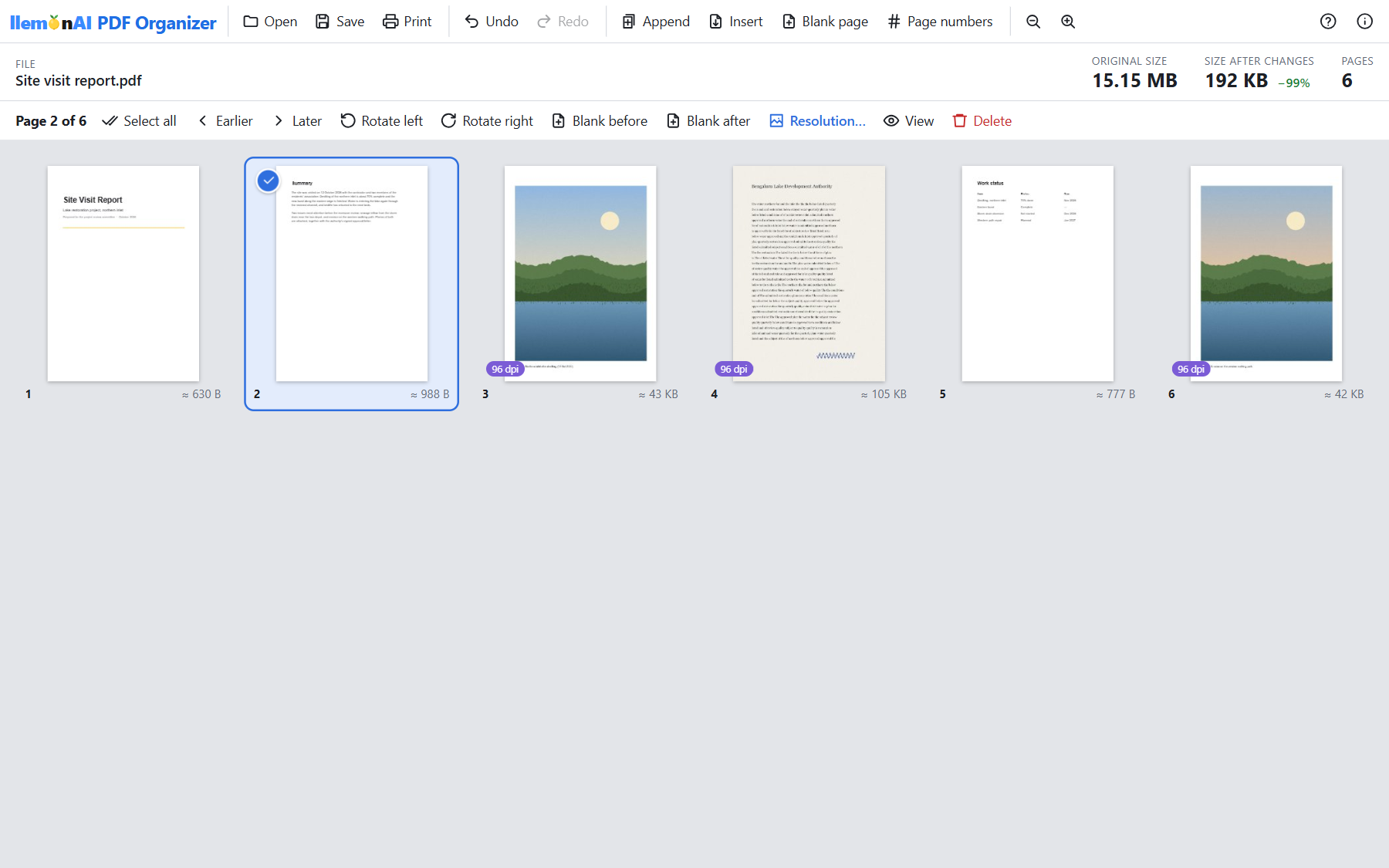
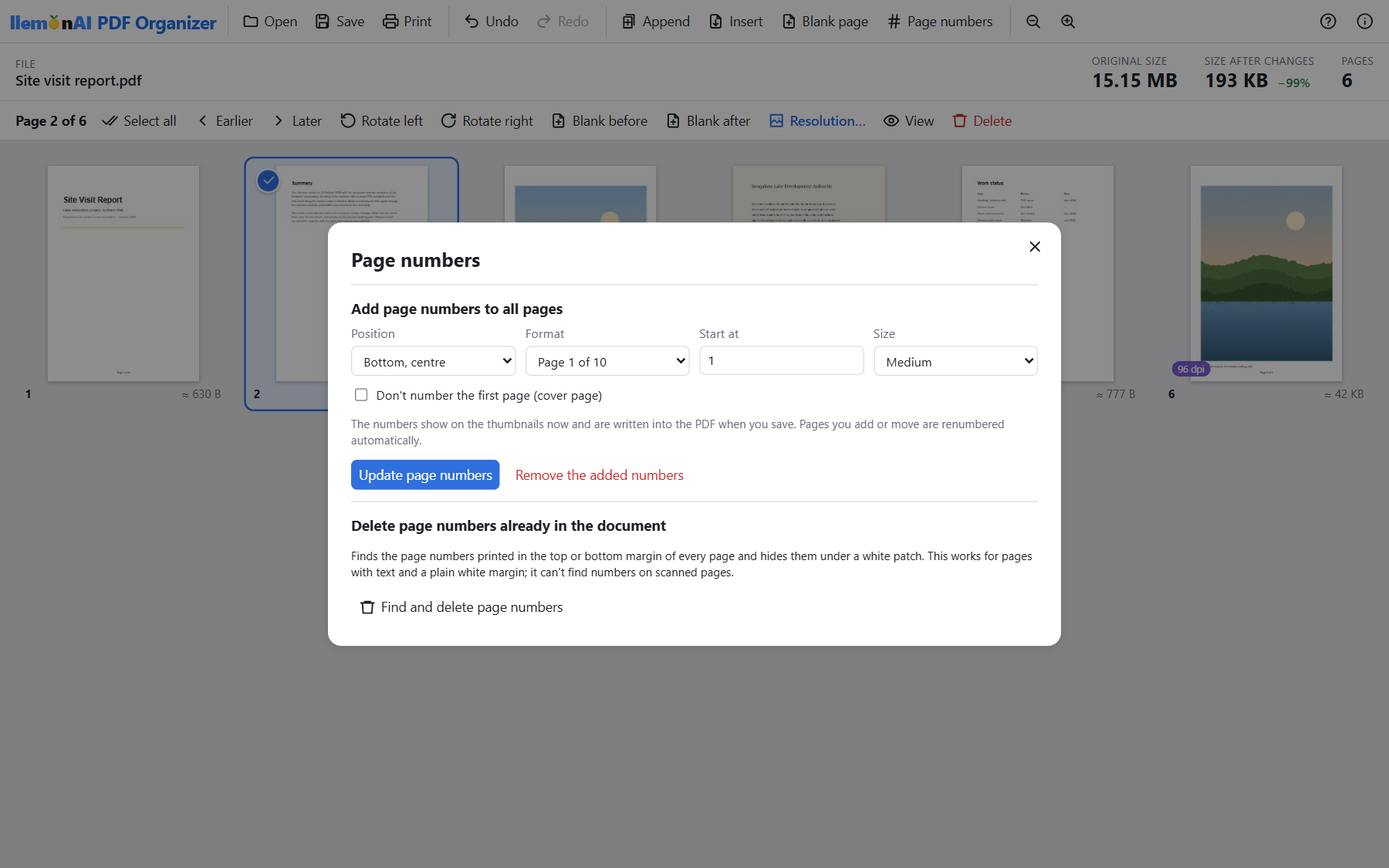
llemonAI PDF Organizer 1.5.0, 31 Oct 2026. First public release:
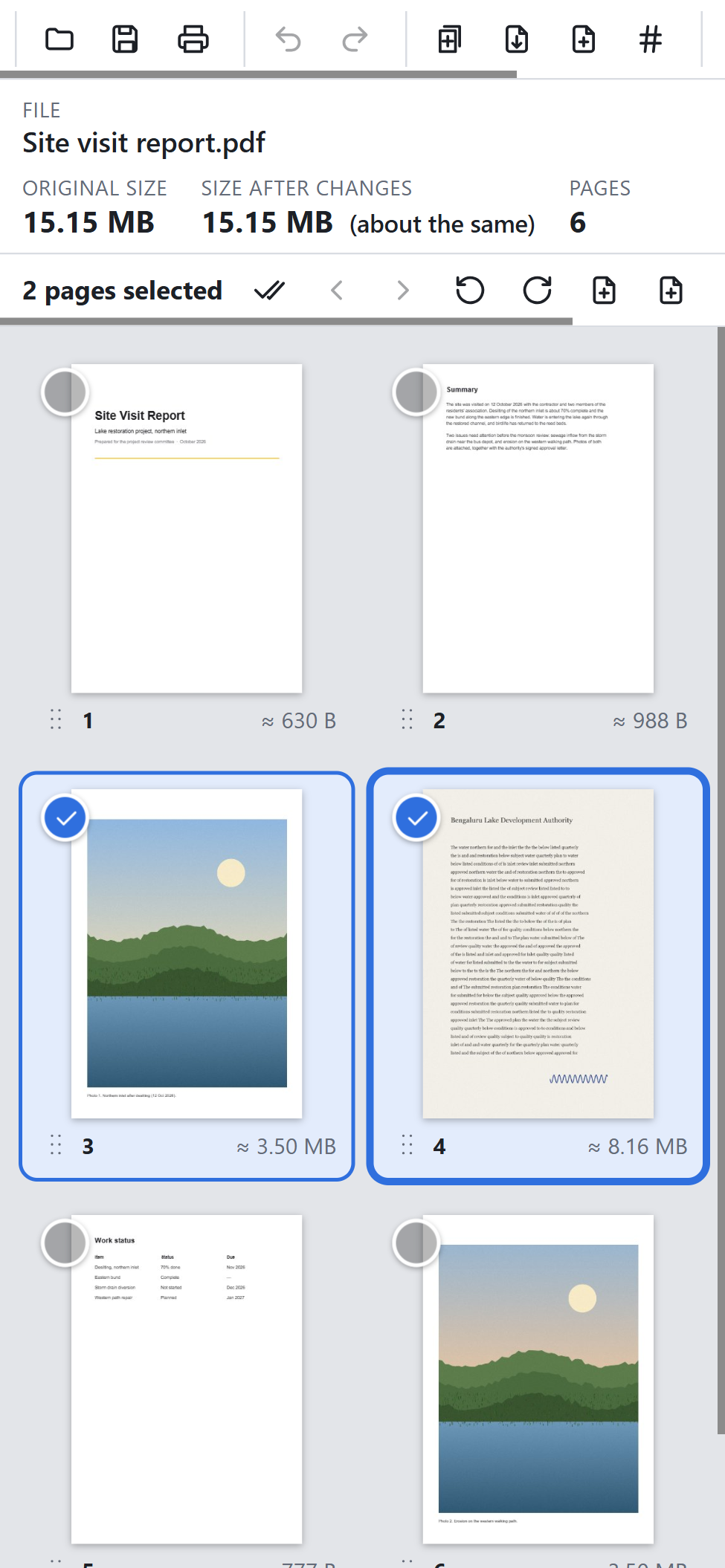
page-by-page resolution with before/after sizes, page reorder, rotate, add and delete with multi-select,
PDF, Word (.docx, .doc) and text merging, adding and deleting page numbers, and printing.
Version 1.5.0 · 31 Oct 2026
PDF Organizer — 64-bit
Recommended for almost everyone · Windows 10/11 64-bit
- Single portable .exe (~13 MB)
- No installation, no admin rights required
- Uses the Microsoft Edge WebView2 runtime built into Windows 10 and 11
Download for 64-bit Windows
SHA256:
Version 1.5.0 · 31 Oct 2026
PDF Organizer — 32-bit
For 32-bit Windows installations
- Single portable .exe (~13 MB)
- No installation, no admin rights required
- Windows 10/11, 32-bit edition
Download for 32-bit Windows
SHA256:
Version 1.5.0 · 31 Oct 2026
PDF Organizer — Android
Android 8.0+ (API 26+)
- Single .apk (~2.5 MB), sideload install
- Signed with our own release key (not on Play Store yet)
- Same features as Windows, with touch selection
Download for Android
SHA256:
Verify your download hasn't been tampered with or corrupted: after downloading, run
certutil -hashfile llemonAI-PDF-Organizer-1.5.0-win-x64.exe SHA256 (PowerShell/Command Prompt)
and compare the result to the SHA256 value shown above for the file you downloaded.
All builds are digitally signed (self-signed certificates, SHA256). Windows SmartScreen may still show
an "Unknown Publisher" warning, and Android may warn about installing from an unknown source, on first
run — that's expected since neither is signed by a publicly trusted CA or listed on the Play Store yet.
The signature and the SHA256 checksum above both let you confirm each file matches exactly what we published.
Installing the Android APK: Android will block it by default as an "unknown source." Open the
downloaded file, tap through the "Install anyway" / "allow this source" prompt, then Install. This is
normal for any app installed outside the Play Store.