llemonAI Reader ← llemonai.in

Show the page.
Keep everything else private.

A free PDF reader, annotator and presentation tool for advocates, teachers, students and trainers. Combine your documents into one PDF, mark them up and collect key passages on a whiteboard. When you present on a projector or video call, your audience sees only the PDF page, not your notes, desktop or other windows.

Windows 10/11, 64-bit & 32-bit, one portable .exe, no installer · Android 8.0 (API 26) and later, single sideloaded APK

One PDF, whatever you present or study

The same simple tools, for anyone who works from documents.

⚖

Advocates and lawyers

Keep trial court records, pleadings, witness statements, evidence, orders, judgments, appeals, memos, hand notings and arguments in one PDF, with a bookmark for each document. During arguments, cross-examination or a virtual hearing, your notes stay on your screen while the audience sees only the page. How advocates use it

💻

Online tutors

Teach on Zoom, Google Meet or Microsoft Teams without showing your desktop, other windows or answer keys. Share only the audience window, then highlight and write on the page with a pen as you explain. Students see each stroke as you draw it.

🏫

Lecturers and teachers

Combine lecture notes, textbook extracts and question papers into one PDF for the classroom projector. Move through pages, zoom in on a diagram and annotate live, with your thumbnails and teaching notes visible only to you.

🎓

Students preparing for exams

Merge notes and past papers, highlight key points and find any sentence in seconds. Copy text or any part of a page to the whiteboard, connect related ideas with arrows, and click a box to return to the page it came from. Useful for revision for board exams, entrance tests and competitive exams.

💼

Corporate training and presentations

Run training sessions and client presentations from one PDF on a projector, Teams or Zoom. Your email, chat windows and desktop stay off the shared screen, and Export produces one final copy with every note included.

📖

Everyday reading and review

Read books, reports, contracts and research papers one page at a time or in continuous scrolling. Mark them up, keep notes and bookmarks, and save a normal PDF that opens in other PDF viewers.

For advocates and lawyers: your whole case file, in one place

Stop juggling folders and bundles. Keep trial court records, pleadings, witness statements, evidence, orders, judgments, appeals, memos, hand notings and arguments together in one PDF, in the order you want to argue them. Free, with no signup.

📂

The whole matter in one file

Combine trial court records, pleadings, witness statements including Section 161 statements (Section 180 BNSS), evidence, orders, judgments, appeals, memos, bare acts and written arguments into one PDF. PDF and Word files both work. Each file gets its own bookmark, and you can reorder pages or insert a document at any position as the matter grows.

✍

Your hand notings on the page

Write directly on a page with a mouse, stylus or finger, just as you would in the margin of a paper file. Highlight or underline text, circle a passage, and attach a note to a sentence or a whole page. The Notes panel lists every annotation in one place.

🔍

Find it while on your feet

Jump straight to any document with its bookmark, a page thumbnail or the page number, and search a word or whole sentence across typed documents. Scanned records can be read and annotated, but can only be searched if the PDF already contains text.

📋

Build your argument on the whiteboard

Pull a line from a deposition, a paragraph of an order and a section of the act onto the whiteboard, keeping any annotations on them, and connect them with arrows. Each box shows its page number and takes you back to that page with one click.

⚖

Arguments and cross-examination

Have the record, your questions and your notes ready on your own screen. Where the court or forum allows a screen, or in a virtual hearing, the projector or shared window shows only the page you choose, and your notes and other documents stay with you.

🔒

Confidential by design

Client files are opened, annotated and saved on your own device. Nothing is uploaded. Your notes and whiteboard are saved inside the PDF, so keep a clean copy of any document you need to send to someone else.

Presentation mode: they see the page, you keep the controls

Click Present and a separate audience window shows only the PDF page, following what you do on your screen. Your toolbar, thumbnails, whiteboard, notes and desktop stay with you. Available on Windows.

📽

On a projector

Connect the projector, press Windows+P and choose Extend, then click Present. With Duplicate, the audience sees your whole screen, so use Extend.

🎥

On a video call

Click Present, then in Zoom, Microsoft Teams or Google Meet share only the window named llemonAI Reader - Audience, not your entire screen. Viewers won't see your other windows or desktop background.

✎

Live, as you work

Page changes, zoom, scrolling, highlights and pen strokes appear for your audience as you make them. Click a whiteboard box and they see that page, with the source lit up.

Everything you do to a paper document, on a PDF

Mark it up, keep track of it, and hand back one clean file.

📋

Whiteboard with page links

Copy selected text, a rectangle or any freehand shape from any page, along with its annotations. Each box shows its page number and opens that page when clicked, and arrows connect related boxes. It is saved inside the PDF.

📑

Index & pages, docked left

The document's own table of contents, page thumbnails, your notes, bookmarks and search results live in a side panel that scrolls on its own — the page you're reading never moves it.

🖌

Highlight, underline, circle

Select text to highlight or underline it in six colours, or draw a circle around anything that matters. Every mark can carry a note.

✍

Pen for freehand writing

Write, sign or sketch directly on the page with a mouse, finger or stylus. Thin, medium or thick pen; Ctrl+Z undoes the last stroke.

📝

Sticky notes & bookmarks

Pin a sticky note anywhere, attach a note to a sentence or a whole page, and bookmark pages or individual comments to jump back to them later.

🔍

Word & sentence search

Find a single word or a whole sentence across the document, even when it breaks over lines — with match-case and whole-word options and a results list in context.

🗐

Add, delete & reorder pages

Drag thumbnails to reorder, rotate or delete pages, insert blank pages, or insert another PDF or Word file at any position. Notes move with their pages.

📎

Merge PDF & Word files

Append PDFs and Word (.docx) documents to the one you're reading — or combine several files into a new one. Each file gets a bookmark, and Word text stays searchable.

🖨

Save, export master PDF, print

Save keeps annotations editable and visible in any PDF viewer. Export burns them in and adds a Notes & comments appendix — one master file to share or archive.

See it in action

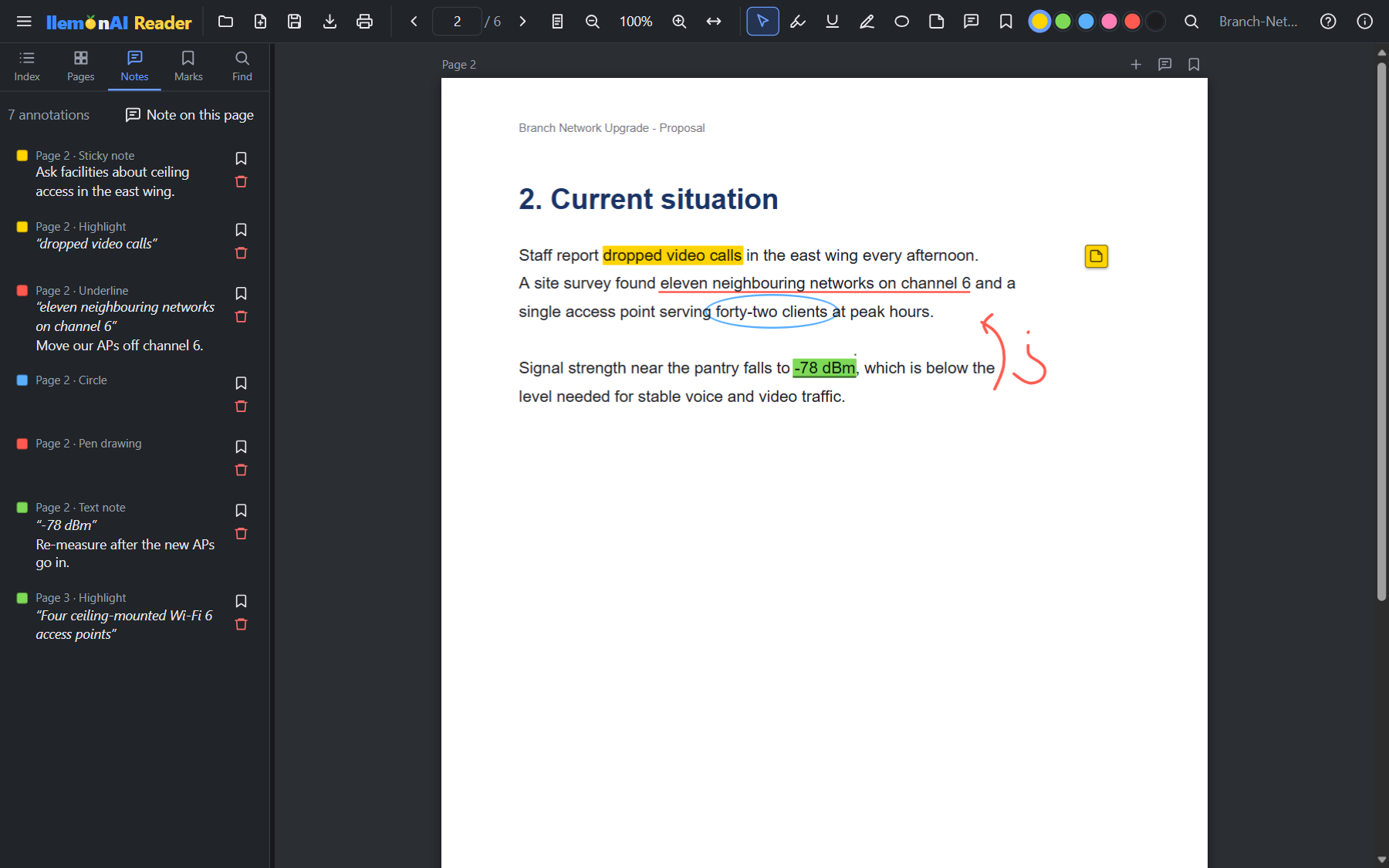
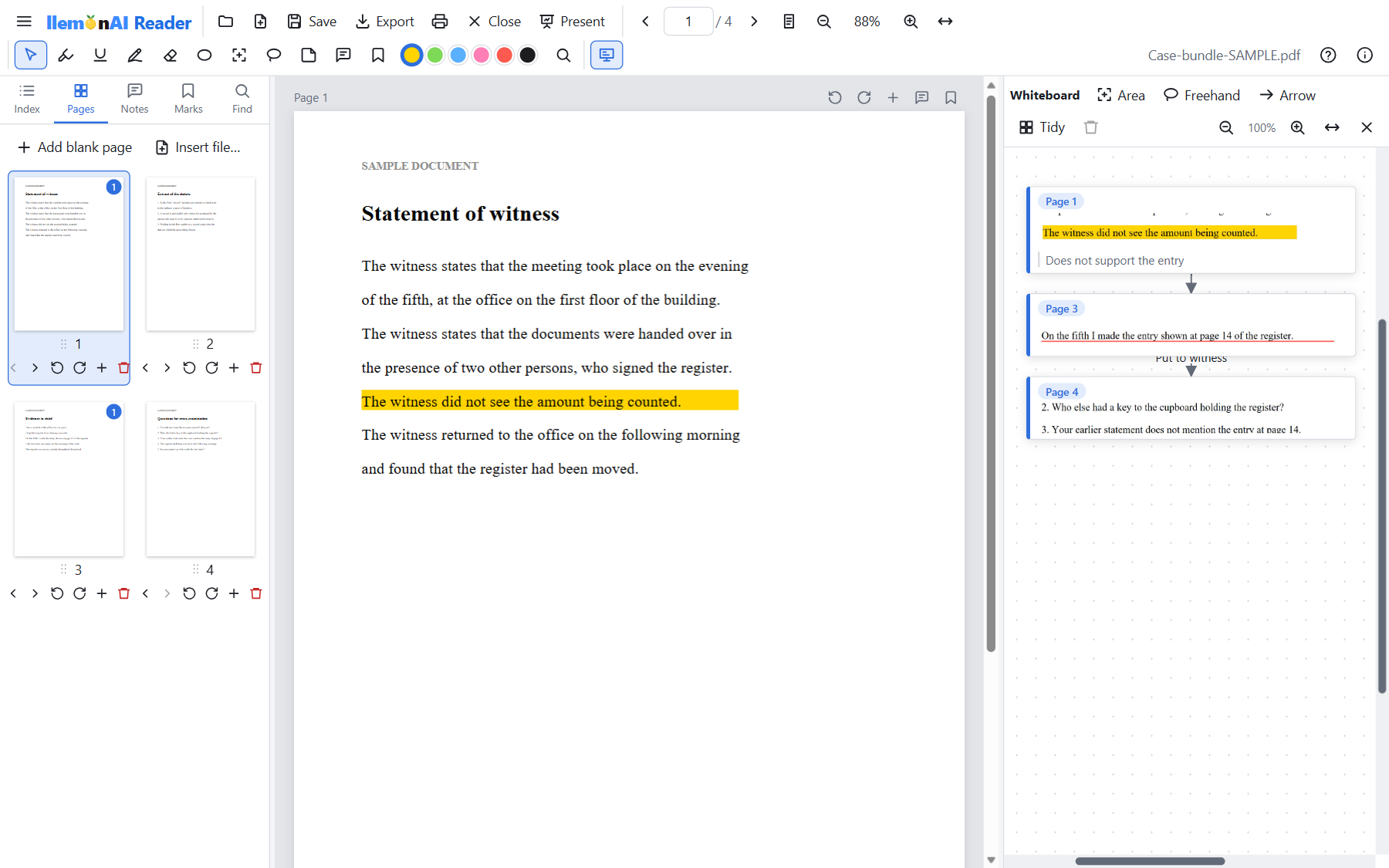
A real review session on Windows — highlights, an underline with a comment, a circle, a sticky note and pen marks, with every annotation listed in the side panel.

llemonAI Reader with page thumbnails, an annotated sample PDF page, and a whiteboard of boxes linked to their page numbers and joined by arrows
Your screen — every control, thumbnails and the whiteboard (sample document)
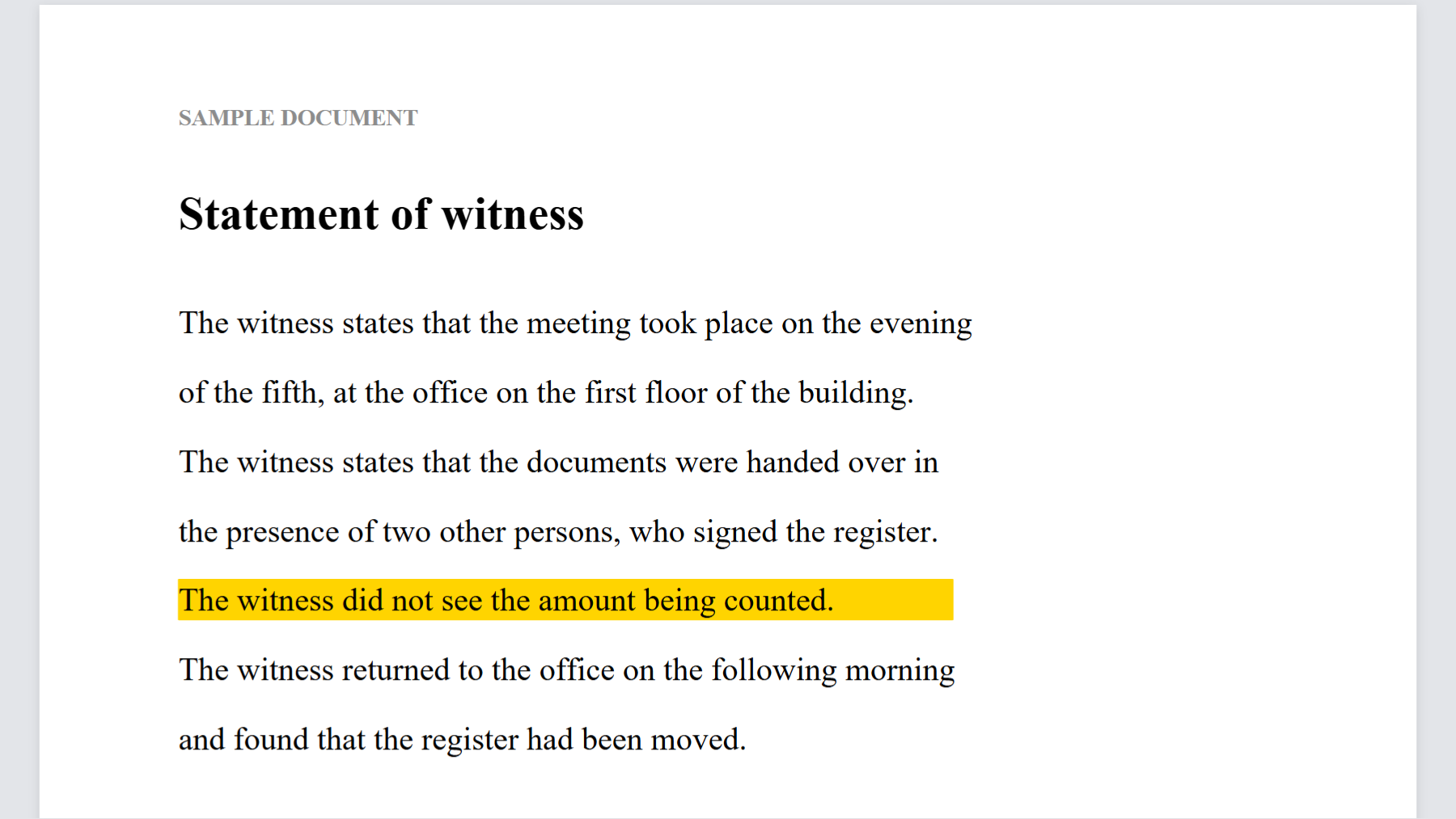
The llemonAI Reader audience window showing only a highlighted PDF page, with no toolbar, thumbnails or whiteboard
What your audience sees — only the PDF page (sample document)
llemonAI Reader on Windows showing a PDF page with highlights, an underline, a circle, a sticky note and pen drawing, with the Notes panel listing each annotation
Annotate — highlight, underline, circle, pen and sticky notes, all listed in the Notes panel
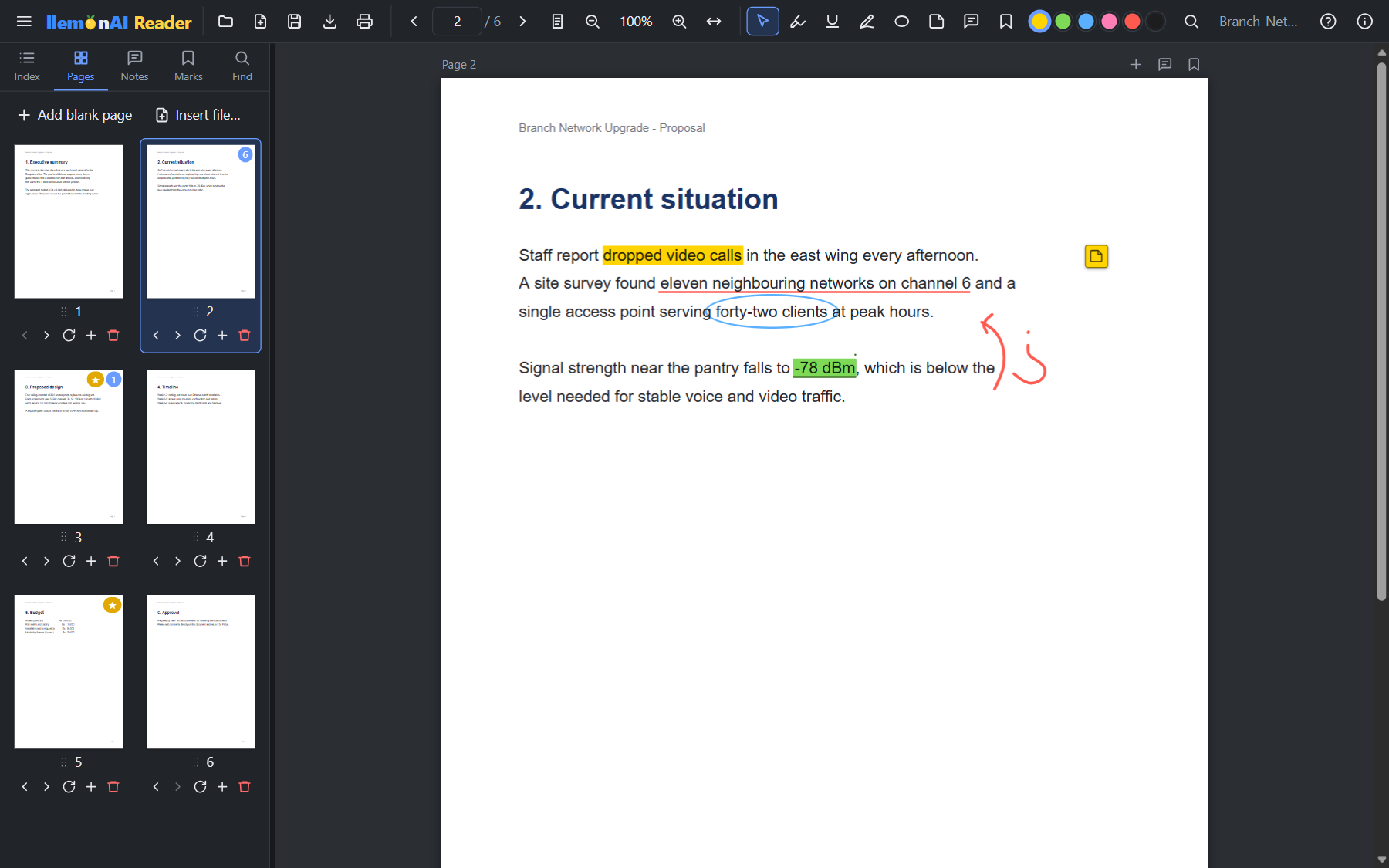
llemonAI Reader Pages panel with page thumbnails, bookmark and note badges, and buttons to move, rotate, insert and delete pages
Pages — thumbnails with badges, drag to reorder, rotate, insert blank pages or files, delete
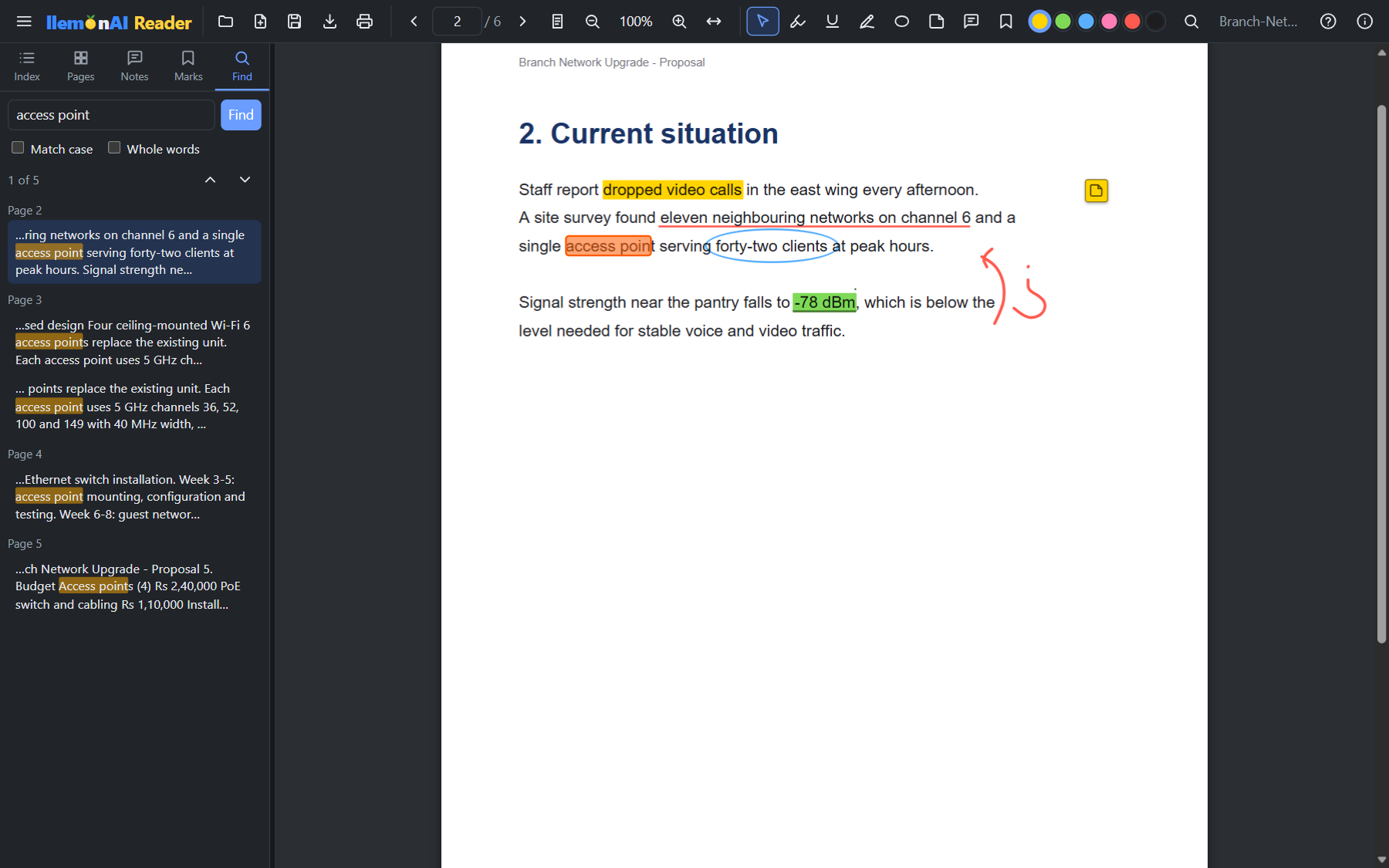
llemonAI Reader Find panel showing sentence search results across several pages with the current match highlighted
Find — words or whole sentences, with every match in context

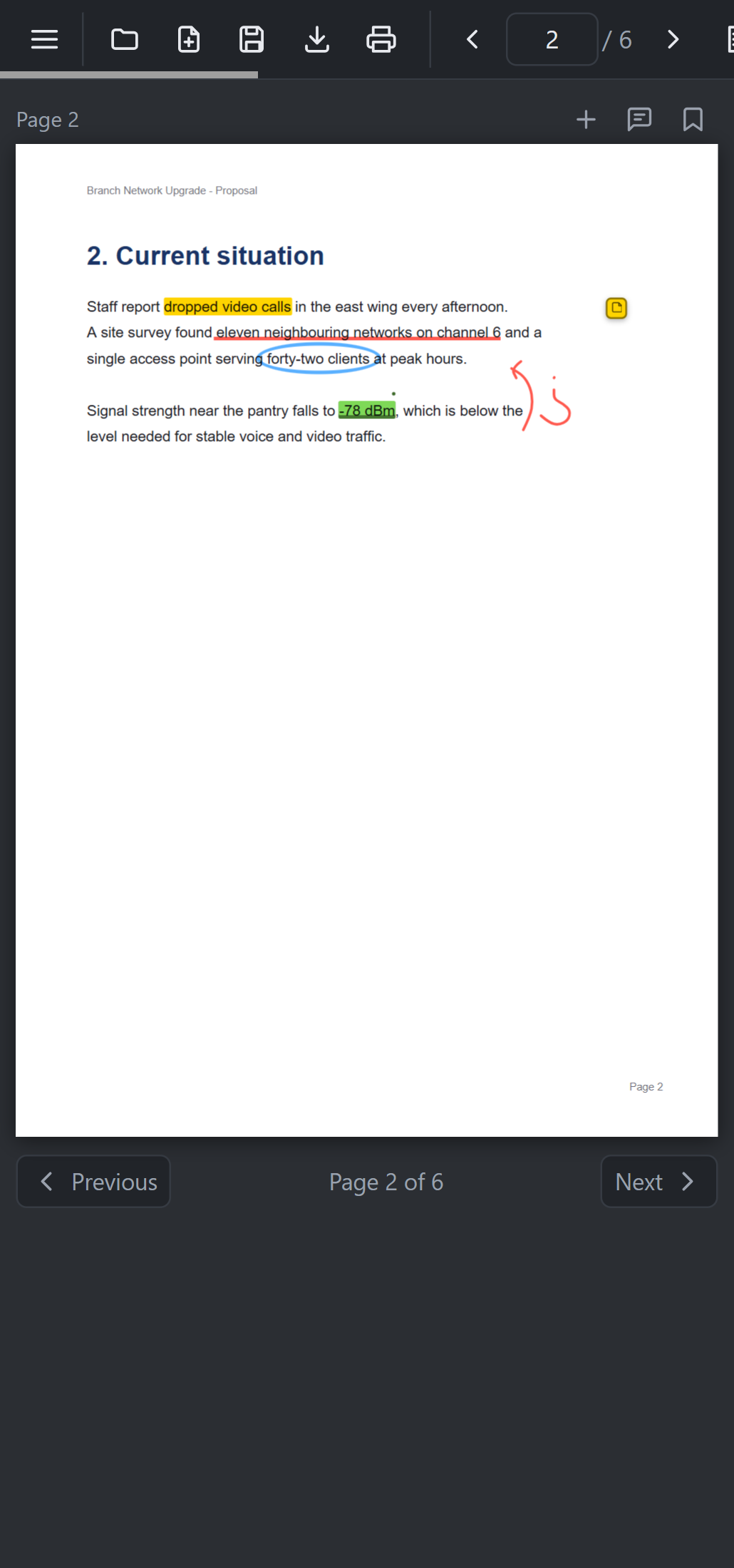
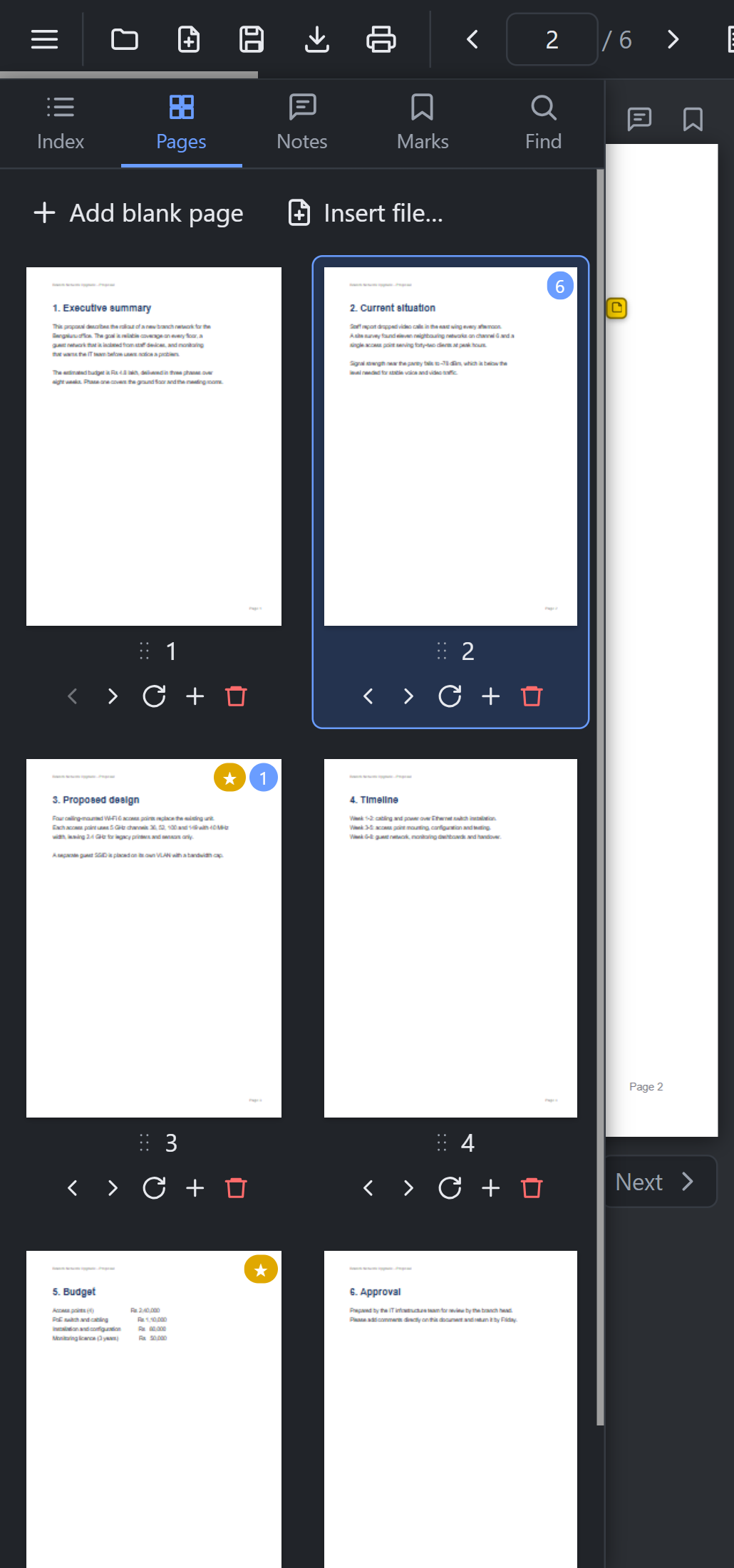
...and on Android — the same features, with touch: pinch to zoom, draw with a finger, and the side panel as a slide-out drawer.

llemonAI Reader for Android showing an annotated PDF page in single-page view with Previous and Next buttons
Single-page reading — scrolling stays on the page you chose
llemonAI Reader for Android with the side drawer open on the Pages tab
Side drawer — index, pages, notes, bookmarks and search

Download

Windows or Android — pick the build that matches your device. Not sure which Windows build? Almost every PC made since 2010 is 64-bit — use the 64-bit build unless you know otherwise.

llemonAI Reader 2.0, 4 Nov 2026. New: Presentation mode for projectors and video calls (Windows); a whiteboard for text, rectangular and freehand selections, with page links and arrows; a Close button; and page rotation controls. Also includes reading with a docked index and page panel, highlights, underlines, circles, pen, eraser, sticky notes, page notes and bookmarks, word and sentence search, page management, PDF and Word merging, editable save, master PDF export and printing.

Version 2.0 · 4 Nov 2026

llemonAI Reader — 64-bit

Recommended for almost everyone · Windows 10/11 64-bit
  • Single portable .exe (~13 MB)
  • No installation, no admin rights required
  • Uses the Microsoft Edge WebView2 runtime built into Windows 10 and 11
  • Includes Presentation mode
Download for 64-bit Windows
SHA256:
Version 2.0 · 4 Nov 2026

llemonAI Reader — 32-bit

For 32-bit Windows installations
  • Single portable .exe (~13 MB)
  • No installation, no admin rights required
  • Windows 10/11, 32-bit edition
  • Includes Presentation mode
Download for 32-bit Windows
SHA256:
Version 2.0 · 4 Nov 2026

llemonAI Reader — Android

Android 8.0+ (API 26+)
  • Single .apk (~2.5 MB), sideload install
  • Signed with our own release key (not on Play Store yet)
  • Same features as Windows except Presentation mode, plus pinch-zoom and finger drawing
Download for Android
SHA256:

Verify your download hasn't been tampered with or corrupted: after downloading, run certutil -hashfile llemonAI-Reader-2.0.0-win-x64.exe SHA256 (PowerShell/Command Prompt) and compare the result to the SHA256 value shown above for the file you downloaded.

All builds are digitally signed (self-signed certificates, SHA256). Windows SmartScreen may still show an "Unknown Publisher" warning, and Android may warn about installing from an unknown source, on first run — that's expected since neither is signed by a publicly trusted CA or listed on the Play Store yet. The signature and the SHA256 checksum above both let you confirm each file matches exactly what we published.

Installing the Android APK: Android will block it by default as an "unknown source." Open the downloaded file, tap through the "Install anyway" / "allow this source" prompt, then Install. This is normal for any app installed outside the Play Store.
Good to know

How llemonAI Reader handles your files.

TopicDetails
Your files stay on your deviceDocuments are opened, annotated and saved locally. Nothing is uploaded.
AnnotationsSaved as standard PDF annotations, so they show in other PDF viewers too — and stay editable when you reopen the file in llemonAI Reader.
Save or ExportUse Save for any file you may want to change. Export makes a final copy: highlights, drawings and notes are burned into the pages, with a Notes & comments list at the end, and can't be erased from that copy.
WhiteboardSave keeps the whiteboard inside the PDF. Export and Print do not include it.
Presentation modeWindows only for now. On a projector, use Extend rather than Duplicate. On a video call, share only the audience window, not your entire screen.
Word files.docx files are converted to searchable PDF pages (headings, paragraphs, lists, tables and images). Old Word 97–2003 .doc files need to be re-saved as .docx first.
Encrypted PDFsPassword-protected PDFs can be opened, read, searched and printed, but not changed.
ShortcutsCtrl+O open · Ctrl+S save · Ctrl+W close · Ctrl+P print · Ctrl+F search · ← → pages · F1 help